> ## Documentation Index
> Fetch the complete documentation index at: https://docs.oppla.ai/llms.txt
> Use this file to discover all available pages before exploring further.
# Key Bindings
> Customize Oppla's keyboard shortcuts with AI-powered optimization
Oppla features an incredibly flexible key binding system enhanced with AI that learns your habits and suggests optimal configurations. Customize everything to match your muscle memory while discovering new efficiency patterns!
## AI-Optimized Predefined Keymaps
If you're transitioning from another editor, Oppla's AI can help you adapt. Set a `base_keymap` in your [settings file](../configuring-oppla.mdx) and let our AI smooth the transition:
* **VSCode** (default) - Most popular choice with AI enhancements
* **Atom** - Classic bindings with modern AI features
* **Emacs** (Beta) - Power user bindings with AI assistance
* **JetBrains** - IntelliJ-style with predictive shortcuts
* **SublimeText** - Lightweight and fast
* **TextMate** - Mac-native feel
* **AI-Optimized** - Let Oppla's AI create a custom keymap for you
* **None** - Start fresh (disables all default key bindings)
You can also enable `vim_mode` for vim bindings enhanced with AI predictions.
**AI Keymap Learning**: When you select a base keymap, Oppla's AI observes your usage patterns and suggests optimizations. After a week of use, check the command palette for "AI: Suggest Keymap Improvements".
## User Keymaps with AI Assistance
Oppla reads your keymap from `~/.config/oppla/keymap.json`. Open it within Oppla using the keybinding for opening keymaps, or via `oppla: Open Keymap` in the command palette.
The file contains a JSON array of objects with `"bindings"`. Our AI assistant can help you create and optimize these bindings based on your workflow.
### AI-Enhanced Example
```json theme={null}
[
{
"bindings": {
"ctrl-right": "editor::SelectLargerSyntaxNode",
"ctrl-left": "editor::SelectSmallerSyntaxNode",
"cmd-shift-a": "ai::InlineAssist",
"cmd-enter": "ai::AcceptSuggestion"
}
},
{
"context": "ProjectPanel && not_editing",
"bindings": {
"o": "project_panel::Open",
"a": "ai::AnalyzeFile"
}
},
{
"context": "ai_suggestion_active",
"bindings": {
"tab": "ai::AcceptSuggestion",
"escape": "ai::DismissSuggestion",
"cmd-right": "ai::NextSuggestion",
"cmd-left": "ai::PreviousSuggestion"
}
}
]
```
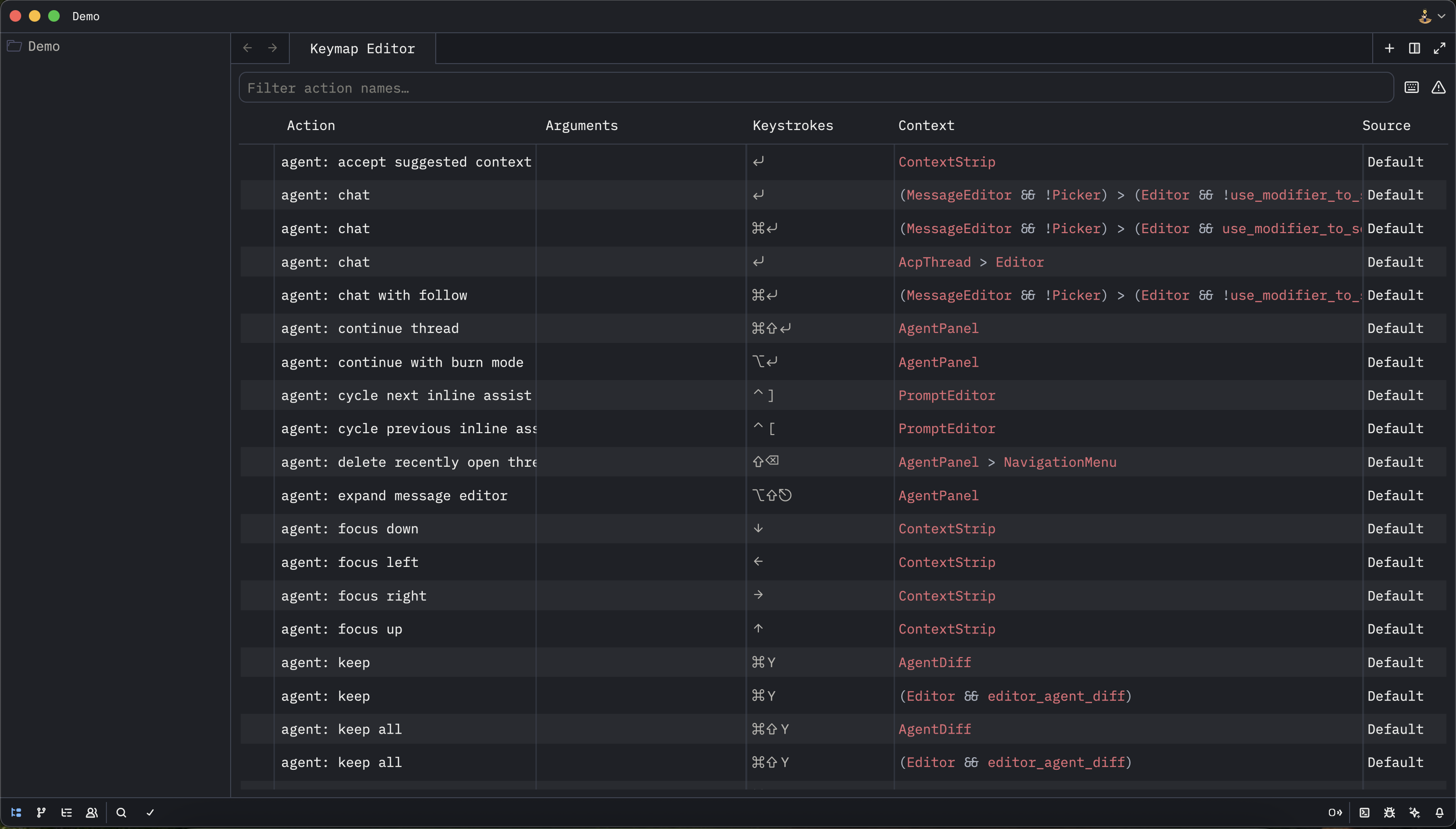 You can see all of Oppla's default bindings in the default keymaps for [macOS](https://github.com/oppla/oppla/blob/main/assets/keymaps/default-macos.json) or [Linux](https://github.com/oppla/oppla/blob/main/assets/keymaps/default-linux.json).
For debugging custom keymaps, use `dev: Open Key Context View` from the command palette. Our AI will analyze conflicts and suggest resolutions.
### Keybinding Syntax
Oppla matches against sequences of keys typed in order. Each key in the `"bindings"` map is a sequence of keypresses separated with a space.
#### Modifiers
* `ctrl-` The control key
* `cmd-`, `win-` or `super-` Platform modifier (Command on macOS, Windows key on Windows, Super on Linux)
* `alt-` Alt key (Option on macOS)
* `shift-` The shift key
* `fn-` The function key
* `secondary-` Platform-adaptive (cmd on macOS, ctrl on Windows/Linux)
* `ai-` Special modifier for AI commands (maps to cmd-shift by default)
#### AI-Powered Examples
```json theme={null}
{
"bindings": {
"cmd-k cmd-s": "oppla::OpenKeymap", // Sequential: ⌘-k then ⌘-s
"space e": "editor::Complete", // Type space then e
"ai-space": "ai::SmartComplete", // AI-enhanced completion
"shift shift": "ai::QuickSearch", // Double-tap shift for AI search
"cmd-shift-a": "ai::ExplainCode", // AI code explanation
"alt-enter": "ai::RefactorSelection" // AI-powered refactoring
}
}
```
### Contexts with AI Enhancement
Contexts determine when bindings are active. Oppla's AI can suggest context-specific bindings based on your workflow patterns.
The context tree structure with AI-specific contexts:
```
Workspace os=macos keyboard_layout=com.apple.keylayout.QWERTY ai_active=true
Pane
Editor mode=full extension=py ai_suggestion_active=true
AIPanel mode=chat
Dock
ProjectPanel not_editing
```
#### AI-Specific Contexts
* `ai_suggestion_active` - When AI is showing suggestions
* `ai_panel_focused` - When the AI assistant panel is active
* `ai_refactoring` - During AI-powered refactoring
* `ai_explaining` - While AI is explaining code
* `ai_generating` - During AI code generation
#### Context Expression Examples
```json theme={null}
{
"context": "Editor && ai_suggestion_active",
"bindings": {
"tab": "ai::AcceptSuggestion",
"cmd-]": "ai::NextSuggestion"
}
},
{
"context": "Editor && mode=full && !ai_suggestion_active",
"bindings": {
"cmd-i": "ai::TriggerInlineAssist"
}
}
```
### AI-Powered Actions
Oppla exposes all functionality as actions, with special AI-enhanced actions:
#### Core AI Actions
* `ai::InlineAssist` - Trigger inline AI assistance
* `ai::AcceptSuggestion` - Accept current AI suggestion
* `ai::ExplainCode` - Explain selected code
* `ai::RefactorSelection` - AI-powered refactoring
* `ai::GenerateTests` - Generate tests for selection
* `ai::OptimizeCode` - Optimize selected code
* `ai::FixErrors` - AI-powered error resolution
* `ai::SmartRename` - Context-aware renaming
#### Action Arguments
Some AI actions accept arguments for customization:
```json theme={null}
{
"cmd-shift-r": ["ai::Refactor", { "style": "functional" }],
"cmd-shift-t": ["ai::GenerateTests", { "framework": "jest" }],
"cmd-shift-o": ["ai::Optimize", { "focus": "performance" }]
}
```
### Precedence and Conflict Resolution
Oppla's AI intelligently resolves binding conflicts:
1. **Context Specificity**: More specific contexts win
2. **User Priority**: User bindings override defaults
3. **AI Suggestions**: AI detects conflicts and suggests alternatives
4. **Smart Delays**: AI-optimized timing for key sequences
When you have prefix conflicts (e.g., `ctrl-w` and `ctrl-w left`), Oppla's AI learns your typing speed and adjusts the wait time dynamically.
### Non-QWERTY Keyboards with AI Adaptation
Oppla's AI automatically adapts to non-QWERTY layouts:
* **Auto-detection** of keyboard layout
* **Smart remapping** to maintain muscle memory
* **Layout-specific suggestions** for optimal efficiency
* **Cross-layout compatibility** when switching keyboards
Set `use_key_equivalents` to `true` for automatic layout adaptation:
```json theme={null}
{
"use_key_equivalents": true,
"ai_keyboard_optimization": true
}
```
## AI Keymap Optimization
### Learning Mode
Enable AI learning to get personalized suggestions:
```json theme={null}
{
"ai_keymap_learning": {
"enabled": true,
"suggest_after_days": 7,
"track_patterns": true,
"optimize_for": ["speed", "ergonomics", "memorability"]
}
}
```
### AI Recommendations
After using Oppla, check for AI recommendations:
1. Open command palette
2. Run "AI: Analyze Keymap Usage"
3. Review suggested optimizations
4. Apply changes with one click
The AI considers:
* **Frequency** of command usage
* **Finger travel** distance
* **Timing patterns** in your workflow
* **Conflict avoidance** with existing bindings
* **Ergonomic factors** for reduced strain
## Quick Tips
1. **Let AI learn**: Use Oppla normally for a week before optimizing
2. **Review suggestions**: Check AI keymap suggestions weekly
3. **Context awareness**: Use context-specific bindings for efficiency
4. **AI shortcuts**: Prioritize AI command bindings for maximum productivity
5. **Experiment**: Try AI-suggested bindings for 48 hours before reverting
For advanced keymap customization and AI training, see our [Advanced Keybinding Guide](../advanced/keybindings.mdx).
You can see all of Oppla's default bindings in the default keymaps for [macOS](https://github.com/oppla/oppla/blob/main/assets/keymaps/default-macos.json) or [Linux](https://github.com/oppla/oppla/blob/main/assets/keymaps/default-linux.json).
For debugging custom keymaps, use `dev: Open Key Context View` from the command palette. Our AI will analyze conflicts and suggest resolutions.
### Keybinding Syntax
Oppla matches against sequences of keys typed in order. Each key in the `"bindings"` map is a sequence of keypresses separated with a space.
#### Modifiers
* `ctrl-` The control key
* `cmd-`, `win-` or `super-` Platform modifier (Command on macOS, Windows key on Windows, Super on Linux)
* `alt-` Alt key (Option on macOS)
* `shift-` The shift key
* `fn-` The function key
* `secondary-` Platform-adaptive (cmd on macOS, ctrl on Windows/Linux)
* `ai-` Special modifier for AI commands (maps to cmd-shift by default)
#### AI-Powered Examples
```json theme={null}
{
"bindings": {
"cmd-k cmd-s": "oppla::OpenKeymap", // Sequential: ⌘-k then ⌘-s
"space e": "editor::Complete", // Type space then e
"ai-space": "ai::SmartComplete", // AI-enhanced completion
"shift shift": "ai::QuickSearch", // Double-tap shift for AI search
"cmd-shift-a": "ai::ExplainCode", // AI code explanation
"alt-enter": "ai::RefactorSelection" // AI-powered refactoring
}
}
```
### Contexts with AI Enhancement
Contexts determine when bindings are active. Oppla's AI can suggest context-specific bindings based on your workflow patterns.
The context tree structure with AI-specific contexts:
```
Workspace os=macos keyboard_layout=com.apple.keylayout.QWERTY ai_active=true
Pane
Editor mode=full extension=py ai_suggestion_active=true
AIPanel mode=chat
Dock
ProjectPanel not_editing
```
#### AI-Specific Contexts
* `ai_suggestion_active` - When AI is showing suggestions
* `ai_panel_focused` - When the AI assistant panel is active
* `ai_refactoring` - During AI-powered refactoring
* `ai_explaining` - While AI is explaining code
* `ai_generating` - During AI code generation
#### Context Expression Examples
```json theme={null}
{
"context": "Editor && ai_suggestion_active",
"bindings": {
"tab": "ai::AcceptSuggestion",
"cmd-]": "ai::NextSuggestion"
}
},
{
"context": "Editor && mode=full && !ai_suggestion_active",
"bindings": {
"cmd-i": "ai::TriggerInlineAssist"
}
}
```
### AI-Powered Actions
Oppla exposes all functionality as actions, with special AI-enhanced actions:
#### Core AI Actions
* `ai::InlineAssist` - Trigger inline AI assistance
* `ai::AcceptSuggestion` - Accept current AI suggestion
* `ai::ExplainCode` - Explain selected code
* `ai::RefactorSelection` - AI-powered refactoring
* `ai::GenerateTests` - Generate tests for selection
* `ai::OptimizeCode` - Optimize selected code
* `ai::FixErrors` - AI-powered error resolution
* `ai::SmartRename` - Context-aware renaming
#### Action Arguments
Some AI actions accept arguments for customization:
```json theme={null}
{
"cmd-shift-r": ["ai::Refactor", { "style": "functional" }],
"cmd-shift-t": ["ai::GenerateTests", { "framework": "jest" }],
"cmd-shift-o": ["ai::Optimize", { "focus": "performance" }]
}
```
### Precedence and Conflict Resolution
Oppla's AI intelligently resolves binding conflicts:
1. **Context Specificity**: More specific contexts win
2. **User Priority**: User bindings override defaults
3. **AI Suggestions**: AI detects conflicts and suggests alternatives
4. **Smart Delays**: AI-optimized timing for key sequences
When you have prefix conflicts (e.g., `ctrl-w` and `ctrl-w left`), Oppla's AI learns your typing speed and adjusts the wait time dynamically.
### Non-QWERTY Keyboards with AI Adaptation
Oppla's AI automatically adapts to non-QWERTY layouts:
* **Auto-detection** of keyboard layout
* **Smart remapping** to maintain muscle memory
* **Layout-specific suggestions** for optimal efficiency
* **Cross-layout compatibility** when switching keyboards
Set `use_key_equivalents` to `true` for automatic layout adaptation:
```json theme={null}
{
"use_key_equivalents": true,
"ai_keyboard_optimization": true
}
```
## AI Keymap Optimization
### Learning Mode
Enable AI learning to get personalized suggestions:
```json theme={null}
{
"ai_keymap_learning": {
"enabled": true,
"suggest_after_days": 7,
"track_patterns": true,
"optimize_for": ["speed", "ergonomics", "memorability"]
}
}
```
### AI Recommendations
After using Oppla, check for AI recommendations:
1. Open command palette
2. Run "AI: Analyze Keymap Usage"
3. Review suggested optimizations
4. Apply changes with one click
The AI considers:
* **Frequency** of command usage
* **Finger travel** distance
* **Timing patterns** in your workflow
* **Conflict avoidance** with existing bindings
* **Ergonomic factors** for reduced strain
## Quick Tips
1. **Let AI learn**: Use Oppla normally for a week before optimizing
2. **Review suggestions**: Check AI keymap suggestions weekly
3. **Context awareness**: Use context-specific bindings for efficiency
4. **AI shortcuts**: Prioritize AI command bindings for maximum productivity
5. **Experiment**: Try AI-suggested bindings for 48 hours before reverting
For advanced keymap customization and AI training, see our [Advanced Keybinding Guide](../advanced/keybindings.mdx).