> ## Documentation Index
> Fetch the complete documentation index at: https://docs.oppla.ai/llms.txt
> Use this file to discover all available pages before exploring further.
# Themes
> Customize Oppla's appearance with AI-optimized themes
Oppla comes with a collection of professionally designed themes, each optimized for AI-assisted coding with enhanced syntax highlighting that makes AI suggestions stand out clearly. Additional themes are available through our extension marketplace.
## Selecting a Theme with AI Recommendations
Access Oppla's intelligent Theme Selector via the command palette with "theme selector: Toggle" (bound to `Cmd-K Cmd-T` on macOS and `Ctrl-K Ctrl-T` on Linux).
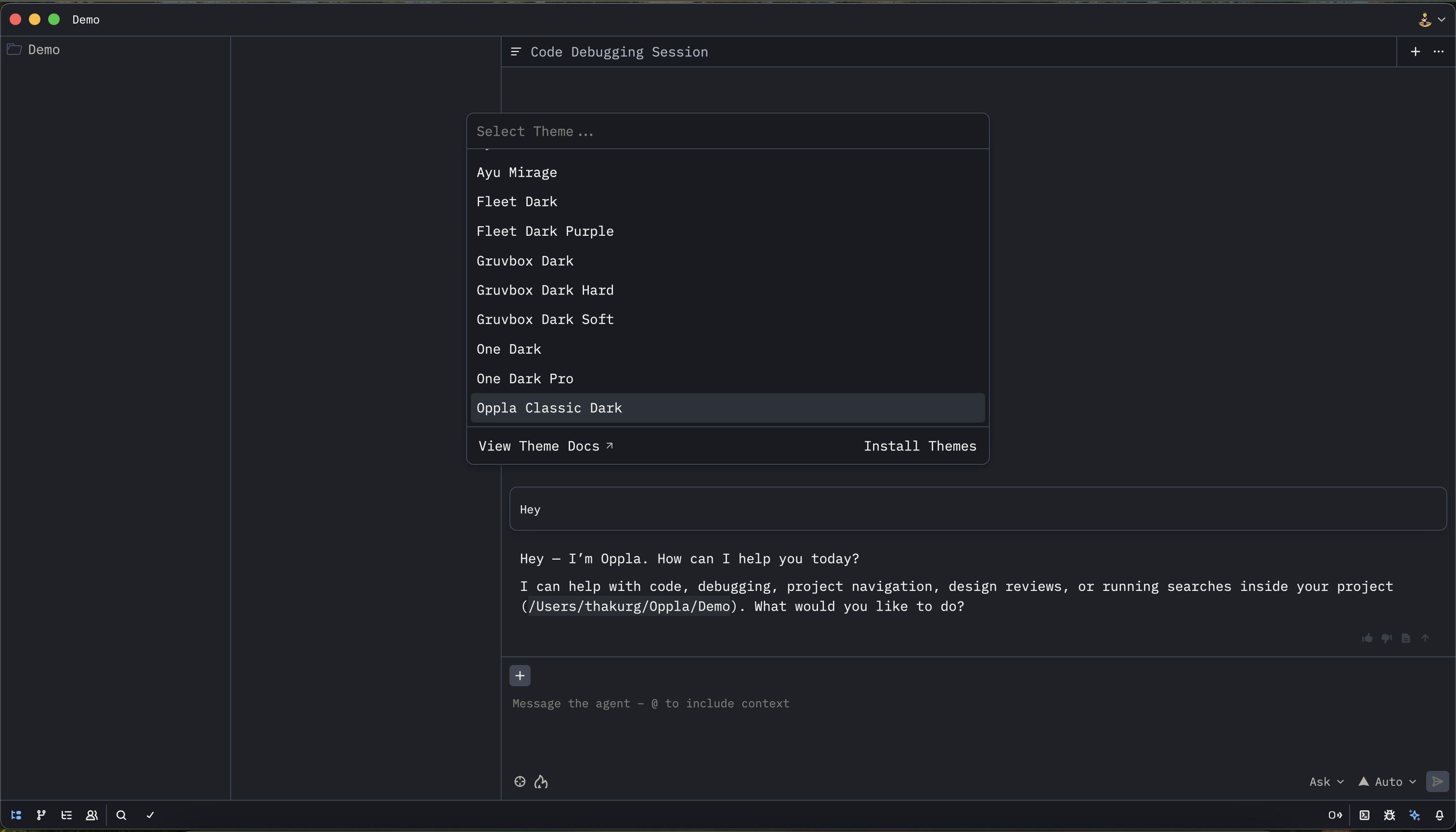 As you navigate through the theme list, Oppla applies themes in real-time, and our AI learns your preferences to suggest themes based on:
* Your coding hours (day/night preferences)
* Language-specific optimal themes
* Eye strain reduction patterns
* Personal selection history
## Installing More Themes
Discover additional themes through the Extensions page, accessible via the command palette with "oppla: Extensions" or visit the [Oppla marketplace](https://oppla.ai/extensions).
Many popular themes have been intelligently adapted for Oppla, with AI-enhanced color schemes that improve code readability and reduce cognitive load. Visit [oppla-themes.com](https://oppla-themes.com) for a curated gallery with live previews and AI compatibility ratings.
## Configuring a Theme
Your selected theme preferences are stored in your settings file. Open your settings from the command palette with "oppla: Open Settings" (bound to `Cmd-,` on macOS and `Ctrl-,` on Linux).
Oppla's AI can maintain adaptive themes that automatically adjust based on ambient light, time of day, and your activity patterns:
```json theme={null}
{
"theme": {
"mode": "ai_adaptive",
"light": "Oppla Light",
"dark": "Oppla Dark",
"ai_optimization": {
"auto_adjust": true,
"eye_strain_reduction": true,
"context_aware_highlighting": true
}
}
}
```
### Theme Modes
* **`"system"`**: Follow system appearance
* **`"dark"`**: Always use dark theme
* **`"light"`**: Always use light theme
* **`"ai_adaptive"`**: Let Oppla's AI optimize theme selection
## Theme Overrides with AI Assistance
Oppla's AI can suggest theme overrides based on your coding patterns. Use the `experimental.theme_overrides` setting to customize specific attributes:
```json theme={null}
{
"experimental.theme_overrides": {
"editor.background": "#1a1a2e",
"ai.suggestion.background": "#16213e",
"ai.suggestion.border": "#F5A742",
"syntax": {
"comment": {
"font_style": "italic",
"foreground": "#6c757d"
},
"ai_generated": {
"font_style": "bold",
"foreground": "#F5A742"
}
}
}
}
```
### AI-Specific Theme Attributes
Oppla introduces special theme attributes for AI features:
* `ai.suggestion.background` - Background for AI code suggestions
* `ai.suggestion.border` - Border color for AI suggestions
* `ai.inline.hint` - Inline AI hint styling
* `ai.completion.highlight` - AI completion highlighting
## Local Themes
Store custom themes locally by placing them in the `~/.config/oppla/themes` directory. Oppla's AI will analyze your custom themes and suggest improvements for better readability and reduced eye strain.
For example, to create a theme called `my-ai-theme`, create `my-ai-theme.json` in that directory. Oppla will validate the theme and provide AI-powered suggestions for color improvements.
**AI Theme Validation**: When you add a local theme, Oppla's AI automatically analyzes it for:
* Contrast ratios for accessibility
* Color harmony
* Syntax highlighting effectiveness
* Eye strain factors
## AI-Optimized Theme Features
### Intelligent Syntax Highlighting
Oppla's themes include AI-enhanced syntax highlighting that:
* **Emphasizes important code patterns** based on context
* **Dims less relevant code** during focused work
* **Highlights potential issues** before they become errors
* **Adapts colors** based on file type and framework
### Adaptive Brightness
When enabled, Oppla adjusts theme brightness based on:
* Ambient light sensors (on supported hardware)
* Time of day
* Duration of coding session
* Eye strain indicators
### Context-Aware Coloring
Themes can dynamically adjust based on:
* Current programming language
* Project type (web, mobile, backend, etc.)
* Active AI assistance level
* Debugging vs. normal editing mode
## Theme Development
Want to create your own AI-optimized theme? See [Developing Oppla Themes](../extensions/themes.mdx) for comprehensive guidelines on building themes that work seamlessly with Oppla's AI features.
## Recommended Themes for AI Development
Based on user feedback and AI analysis, these themes provide optimal experience for AI-assisted coding:
1. **Oppla AI Dark** - Designed specifically for long AI pair-programming sessions
2. **Oppla AI Light** - High contrast theme for daytime AI collaboration
3. **Neural Network** - Inspired by AI visualization, optimized for ML development
4. **Quantum Code** - Futuristic theme with enhanced AI suggestion visibility
5. **Adaptive Pro** - Fully AI-controlled adaptive theme
Find more AI-optimized themes at [oppla-themes.com](https://oppla-themes.com).
As you navigate through the theme list, Oppla applies themes in real-time, and our AI learns your preferences to suggest themes based on:
* Your coding hours (day/night preferences)
* Language-specific optimal themes
* Eye strain reduction patterns
* Personal selection history
## Installing More Themes
Discover additional themes through the Extensions page, accessible via the command palette with "oppla: Extensions" or visit the [Oppla marketplace](https://oppla.ai/extensions).
Many popular themes have been intelligently adapted for Oppla, with AI-enhanced color schemes that improve code readability and reduce cognitive load. Visit [oppla-themes.com](https://oppla-themes.com) for a curated gallery with live previews and AI compatibility ratings.
## Configuring a Theme
Your selected theme preferences are stored in your settings file. Open your settings from the command palette with "oppla: Open Settings" (bound to `Cmd-,` on macOS and `Ctrl-,` on Linux).
Oppla's AI can maintain adaptive themes that automatically adjust based on ambient light, time of day, and your activity patterns:
```json theme={null}
{
"theme": {
"mode": "ai_adaptive",
"light": "Oppla Light",
"dark": "Oppla Dark",
"ai_optimization": {
"auto_adjust": true,
"eye_strain_reduction": true,
"context_aware_highlighting": true
}
}
}
```
### Theme Modes
* **`"system"`**: Follow system appearance
* **`"dark"`**: Always use dark theme
* **`"light"`**: Always use light theme
* **`"ai_adaptive"`**: Let Oppla's AI optimize theme selection
## Theme Overrides with AI Assistance
Oppla's AI can suggest theme overrides based on your coding patterns. Use the `experimental.theme_overrides` setting to customize specific attributes:
```json theme={null}
{
"experimental.theme_overrides": {
"editor.background": "#1a1a2e",
"ai.suggestion.background": "#16213e",
"ai.suggestion.border": "#F5A742",
"syntax": {
"comment": {
"font_style": "italic",
"foreground": "#6c757d"
},
"ai_generated": {
"font_style": "bold",
"foreground": "#F5A742"
}
}
}
}
```
### AI-Specific Theme Attributes
Oppla introduces special theme attributes for AI features:
* `ai.suggestion.background` - Background for AI code suggestions
* `ai.suggestion.border` - Border color for AI suggestions
* `ai.inline.hint` - Inline AI hint styling
* `ai.completion.highlight` - AI completion highlighting
## Local Themes
Store custom themes locally by placing them in the `~/.config/oppla/themes` directory. Oppla's AI will analyze your custom themes and suggest improvements for better readability and reduced eye strain.
For example, to create a theme called `my-ai-theme`, create `my-ai-theme.json` in that directory. Oppla will validate the theme and provide AI-powered suggestions for color improvements.
**AI Theme Validation**: When you add a local theme, Oppla's AI automatically analyzes it for:
* Contrast ratios for accessibility
* Color harmony
* Syntax highlighting effectiveness
* Eye strain factors
## AI-Optimized Theme Features
### Intelligent Syntax Highlighting
Oppla's themes include AI-enhanced syntax highlighting that:
* **Emphasizes important code patterns** based on context
* **Dims less relevant code** during focused work
* **Highlights potential issues** before they become errors
* **Adapts colors** based on file type and framework
### Adaptive Brightness
When enabled, Oppla adjusts theme brightness based on:
* Ambient light sensors (on supported hardware)
* Time of day
* Duration of coding session
* Eye strain indicators
### Context-Aware Coloring
Themes can dynamically adjust based on:
* Current programming language
* Project type (web, mobile, backend, etc.)
* Active AI assistance level
* Debugging vs. normal editing mode
## Theme Development
Want to create your own AI-optimized theme? See [Developing Oppla Themes](../extensions/themes.mdx) for comprehensive guidelines on building themes that work seamlessly with Oppla's AI features.
## Recommended Themes for AI Development
Based on user feedback and AI analysis, these themes provide optimal experience for AI-assisted coding:
1. **Oppla AI Dark** - Designed specifically for long AI pair-programming sessions
2. **Oppla AI Light** - High contrast theme for daytime AI collaboration
3. **Neural Network** - Inspired by AI visualization, optimized for ML development
4. **Quantum Code** - Futuristic theme with enhanced AI suggestion visibility
5. **Adaptive Pro** - Fully AI-controlled adaptive theme
Find more AI-optimized themes at [oppla-themes.com](https://oppla-themes.com).